<?xml version="1.0" encoding="UTF-8"?>
<feed xmlns="http://www.w3.org/2005/Atom">
    <title>デザイナーのMac</title>
    <link rel="alternate" type="text/html" href="http://careerup.biz/mac/" />
    <link rel="self" type="application/atom+xml" href="http://careerup.biz/mac/atom.xml" />
    <id>tag:careerup.biz,2013-04-13:/mac//6</id>
    <updated>2013-04-13T14:23:06Z</updated>
    <subtitle>『Leopard』から『Mountain Lion』になって「不便になった？…」。</subtitle>
    <generator uri="http://www.sixapart.com/movabletype/">Movable Type Pro 6.3.5</generator>

<entry>
    <title>Illustrator cs6の基本フォントを一番使う書体に変更して効率の良い制作を！</title>
    <link rel="alternate" type="text/html" href="http://careerup.biz/mac/2013/04/illustrator-cs6.html" />
    <id>tag:www.careerup.biz,2013:/mac//6.354</id>

    <published>2013-04-03T13:52:21Z</published>
    <updated>2013-04-13T14:23:06Z</updated>

    <summary>小塚やヒラギノは使わない！という方へ。 通常文字を打つときは、前回原稿から流用し...</summary>
    <author>
        <name>Mykey</name>
        
    </author>
    
        <category term=" Mac OS編" scheme="http://www.sixapart.com/ns/types#category" />
    
        <category term="Adobe Creative Suite編" scheme="http://www.sixapart.com/ns/types#category" />
    
        <category term="Adobe Illustrator" scheme="http://www.sixapart.com/ns/types#category" />
    
    
    <content type="html" xml:lang="ja" xml:base="http://careerup.biz/mac/">
        <![CDATA[<h3>小塚やヒラギノは使わない！という方へ。</h3>
<p><a href="http://www.careerup.biz/mac/assets_c/2013/04/09ssmain130413-02-1587.html" onclick="window.open('http://www.careerup.biz/mac/assets_c/2013/04/09ssmain130413-02-1587.html','popup','width=1920,height=509,scrollbars=no,resizable=no,toolbar=no,directories=no,location=no,menubar=no,status=no,left=0,top=0'); return false"><img src="http://www.careerup.biz/mac/assets_c/2013/04/09ssmain130413-02-thumb-500x132-1587.jpg" alt="09ssmain130413-02.jpg" class="mt-image-left" style="float: left; margin: 0 20px 20px 0;" height="132" width="500" /></a>通常文字を打つときは、前回原稿から流用してしまい、新規で打つことはあまりないかもしれませんが、いざ新規の文字を打つと、いつも『基本フォント』の『小塚ゴシックPro』や『ヒラギノ角ゴPro W3』が文字のツールボックスのフォントメニューに表記されていて、表現したい書体に変換するのが面倒だと感じていませんか？</p>
<p>実際のチラシやカタログ、ポスター、ハガキなどの原稿では『小塚』や『ヒラギノ』は滅多に使う事はなく『新ゴ』や『リュウミン』、『太ゴB101』、『太ミンA101』『中ゴシックBBB』、見出し系、丸ゴチック系などを使う事が多く、その中でも最も使用頻度の高い書体に設定しておくと便利でストレスも減ります。</p>
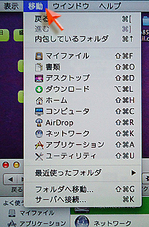
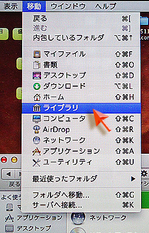
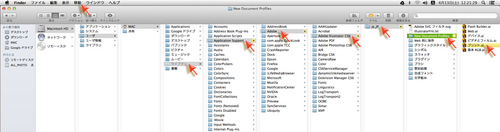
<p>設定の仕方は簡単で、まず肝心なのはマシンを起動・再起動して最初に『メニューバー』の『移動』のプルダウンメニューを開き、...ここが肝心！...キーボード左下の『option』キーを押して、通常では表記されてない隠しファイルの『ライブラリ』を表記さる事から始まります。（※Macintosh HDから開き始めると、第4階層で『option』を押しても無反応なので、必ずメニューバーの『移動』から『option』を押して表示した『ライブラリ』を開いていってください。）</p>
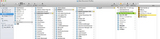
<p>そしてこの後の『ライブラリ』を含む第4階層以降は、矢印で示した通りにウインドウを開いていきます。それ以降の段取りは後で説明しますが、大まかに言うと一番エンドの書類『プリント.ai』に、新しく設定したい書体で任意の文字を打って保存するだけなのです。（最後の階層『New Document Profiles』には『プリント.ai』以外にも『デバイス.ai』や『ビデオとフィルム.ai』などがありますが、通常デザインの業務は終着点が『出力』なので『プリント.ai』でOKです。）</p>
<p><a href="http://www.careerup.biz/mac/assets_c/2013/04/03sspull02DSC07943-1567.html" onclick="window.open('http://www.careerup.biz/mac/assets_c/2013/04/03sspull02DSC07943-1567.html','popup','width=283,height=430,scrollbars=no,resizable=no,toolbar=no,directories=no,location=no,menubar=no,status=no,left=0,top=0'); return false"><img src="http://www.careerup.biz/mac/assets_c/2013/04/03sspull02DSC07943-thumb-150x227-1567.jpg" alt="03sspull02DSC07943.jpg" class="mt-image-left" style="float: left; margin: 0 20px 20px 0;" height="227" width="150" /></a><a href="http://www.careerup.biz/mac/assets_c/2013/04/04sspull01DSC07941-1570.html" onclick="window.open('http://www.careerup.biz/mac/assets_c/2013/04/04sspull01DSC07941-1570.html','popup','width=283,height=441,scrollbars=no,resizable=no,toolbar=no,directories=no,location=no,menubar=no,status=no,left=0,top=0'); return false"><img src="http://www.careerup.biz/mac/assets_c/2013/04/04sspull01DSC07941-thumb-150x233-1570.jpg" alt="04sspull01DSC07941.jpg" class="mt-image-left" style="float: left; margin: 0 20px 20px 0;" height="233" width="150" /></a></p>
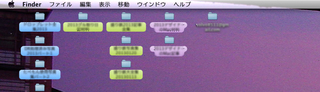
<p><a href="http://www.careerup.biz/mac/assets_c/2013/04/10ss-1573.html" onclick="window.open('http://www.careerup.biz/mac/assets_c/2013/04/10ss-1573.html','popup','width=1592,height=393,scrollbars=no,resizable=no,toolbar=no,directories=no,location=no,menubar=no,status=no,left=0,top=0'); return false"><img src="http://www.careerup.biz/mac/assets_c/2013/04/10ss-thumb-160x39-1573.jpg" alt="10ss.jpg" class="mt-image-left" style="float: left; margin: 0 20px 20px 0;" height="39" width="160" /></a>注意）：ちなみに再起動をせずに、そのまま使っている状態でも左の写真のように『ファインダー』→『メニューバー』→『移動』で『option』を押しながら開くと上の写真のような第4階層からのウインドウが開きその先に進んでいる行くこともできますが、色々なエラーを防ぐためにも、必ず再起動をしてから、『ファインダー』→『メニューバー』→『移動』で『option』をおして『ライブラリ』を開いてください。</p>
<p>一番上の写真の用に『Macintosh HD』から『プリント.ai』までが一覧できる開き方は起動して最初の一回限りです。もし先にたまたま全然関係のないウインドウを開いたりすると、そのウインドがHDを含む全展開で開き、次にこの作業をするとHDなどの第3階層までのウインドウが省かれた状態で表記されます。その場合はもう一度、再起動した方が気持ちが良いかも......。）</p>
<p>そして正しく開いたあとの細かい手順は以下の通りです。ここも重要です！</p>
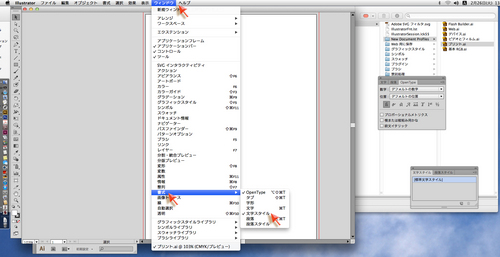
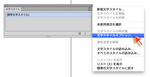
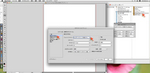
<p><a href="http://www.careerup.biz/mac/assets_c/2013/04/05ss0226135706-1564.html" onclick="window.open('http://www.careerup.biz/mac/assets_c/2013/04/05ss0226135706-1564.html','popup','width=1789,height=923,scrollbars=no,resizable=no,toolbar=no,directories=no,location=no,menubar=no,status=no,left=0,top=0'); return false"><img src="http://www.careerup.biz/mac/assets_c/2013/04/05ss0226135706-thumb-500x257-1564.jpg" alt="05ss0226135706.jpg" class="mt-image-left" style="float: left; margin: 0 20px 20px 0;" height="257" width="500" /></a><a href="http://www.careerup.biz/mac/assets_c/2013/04/06ss0403184536-1578.html" onclick="window.open('http://www.careerup.biz/mac/assets_c/2013/04/06ss0403184536-1578.html','popup','width=685,height=352,scrollbars=no,resizable=no,toolbar=no,directories=no,location=no,menubar=no,status=no,left=0,top=0'); return false"><img src="http://www.careerup.biz/mac/assets_c/2013/04/06ss0403184536-thumb-150x77-1578.jpg" alt="06ss0403184536.jpg" class="mt-image-left" style="float: left; margin: 0 20px 20px 0;" height="77" width="150" /></a><a href="http://www.careerup.biz/mac/assets_c/2013/04/07sssub226140137-1581.html" onclick="window.open('http://www.careerup.biz/mac/assets_c/2013/04/07sssub226140137-1581.html','popup','width=1783,height=873,scrollbars=no,resizable=no,toolbar=no,directories=no,location=no,menubar=no,status=no,left=0,top=0'); return false"><img src="http://www.careerup.biz/mac/assets_c/2013/04/07sssub226140137-thumb-150x73-1581.jpg" alt="07sssub226140137.jpg" class="mt-image-left" style="float: left; margin: 0 20px 20px 0;" height="73" width="150" /></a>まずはIllustratorでその『プリント.ai』を開いたままの状態で、Illustratorの『メニューバー』→『ウインドウ』→『書式』→『文字スタイル』で、『文字スタイル』のツールボックスを開き、その右肩の選択肢から『文字スタイルオプション』を選択し、開いたボックスの中の『基本文字形式』を選択。すると『フォントファミリー』や『サイズ』などが指定できるボックスになるので、使い勝手の良い書体や大きさを選びます。</p>
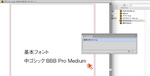
<p><a href="http://www.careerup.biz/mac/assets_c/2013/04/08ss04031836.57-1584.html" onclick="window.open('http://www.careerup.biz/mac/assets_c/2013/04/08ss04031836.57-1584.html','popup','width=1099,height=564,scrollbars=no,resizable=no,toolbar=no,directories=no,location=no,menubar=no,status=no,left=0,top=0'); return false"><img src="http://www.careerup.biz/mac/assets_c/2013/04/08ss04031836.57-thumb-150x76-1584.jpg" alt="08ss04031836.57.jpg" class="mt-image-left" style="float: left; margin: 0 20px 20px 0;" height="76" width="150" /></a>で、ここで最初に開いておいた『プリント.ai』に、何でも良いので文字を打って（自分は見本として書体名を打ちましたが、『あ』でも『い』でも何でもかまいません）保存して閉じて登録終了！</p>
<p>あとは作業につかったボックスなどを閉じて、普通に作業をするだけと、いたって簡単です。ちなみに自分は一番使う『中ゴシックBBB Pro Medium』を登録して使っています。</p>
<p>ただし、お得意さんや業者さんなどの、他のマシンで制作された原稿を開くと、その原稿を新規で作った環境の『基本フォント』を引きずってきますので、『小塚』や『ヒラギノ』が文字ツールボックスに『基本フォント』として表記される事があります。ただその原稿を一度開いたからといってその後に支障を来す事はなく、オリジナルの設定は保持されているのでご心配なく！</p>
<p>何気ない事ですが、『基本フォント』の変更はストレス軽減はもとより、自分で新規に作った原稿が先方で開かれた時に、「Illustratorでの作業を熟知している人が作ったんだなぁ〜」と、解る人には解ってもらえると思います。自己満足でもありますが...。<br /><br /><br /><br /></p>
<div class="leftimg"><a href="http://ck.jp.ap.valuecommerce.com/servlet/referral?sid=24699&amp;pid=881306669&amp;vc_url=https%3A%2F%2Fstore1.adobe.com%2Fcfusion%2Fstore%2Fhtml%2Findex.cfm%3Fevent%3DdisplayProduct%26categoryOID%3D7285635%26store%3DOLS-JP" target="_blank"><img src="http://ad.jp.ap.valuecommerce.com/servlet/gifbanner?sid=24699&amp;pid=881306669" border="0" height="1px" width="1px" /><img src="https://store1.adobe.com/images/store/product_boxshots/150x150/box_design_standard_cs6_150x150.jpg" border="0" /></a></div>
<p><span style="font-size: 1.25em;"><b>Adobe Creative Suite 6 Design Standard<br />（CSデザインスタンダード）はココで買えます。<br />↓↓↓↓↓↓↓↓<br /></b></span><span style="font-size: 1.25em;"><b><span style="font-size: 0.8em;"><span style="font-size: 1.25em;"><a href="http://ck.jp.ap.valuecommerce.com/servlet/referral?sid=24699&amp;pid=881306669&amp;vc_url=https%3A%2F%2Fstore1.adobe.com%2Fcfusion%2Fstore%2Fhtml%2Findex.cfm%3Fevent%3DdisplayProduct%26categoryOID%3D7285635%26store%3DOLS-JP" target="_blank">【アドビストア】</a></span></span> <span style="font-size: 0.64em;"><span style="font-size: 1.25em;"></span></span><span style="font-size: 1em;"><a href="http://ck.jp.ap.valuecommerce.com/servlet/referral?sid=24699&amp;pid=881780105&amp;vc_url=http%3A%2F%2Fwww.amazon.co.jp%2Fs%2Fref%3Dnb_sb_noss_1%3F__mk_ja_JP%3D%25E3%2582%25AB%25E3%2582%25BF%25E3%2582%25AB%25E3%2583%258A%26url%3Dsearch-alias%253Daps%26field-keywords%3DAdobe%2BCreative%2BSuite%2B6%2BDesign%2BStandard%26rh%3Di%253Aaps%252Ck%253AAdobe%2BCreative%2BSuite%2B6%2BDesign%2BStandard%26tag%3Dvc-22%26linkCode%3Dure" target="_blank"> <span style="font-size: 0.64em;"><span style="font-size: 1.5625em;">【Amazon】</span></span></a></span></b></span><br /><span style="font-size: 1.25em;"></span></p>
<p></p>
<div><a href="http://ck.jp.ap.valuecommerce.com/servlet/referral?sid=24699&amp;pid=878925105&amp;vc_url=http%3A%2F%2Fwww.amazon.co.jp%2Fs%2Fref%3Dnb_sb_ss_c_0_4%3F__mk_ja_JP%3D%2583J%2583%255E%2583J%2583i%26url%3Dsearch-alias%253Dcomputers%26field-keywords%3Dimac%26sprefix%3DiMac%252Caps%252C321%26tag%3Dvc-22%26linkCode%3Dure" target="_blank"><img src="http://ad.jp.ap.valuecommerce.com/servlet/gifbanner?sid=24699&amp;pid=878925105" border="0" height="1px" width="1px" /><img src="http://ec2.images-amazon.com/images/I/41OviNkkZmL._SL500_AA300_.jpg" align="left" border="0" width="230" /></a><a href="http://ck.jp.ap.valuecommerce.com/servlet/referral?sid=24699&amp;pid=878925105&amp;vc_url=http%3A%2F%2Fwww.amazon.co.jp%2Fs%2Fref%3Dnb_sb_ss_c_0_4%3F__mk_ja_JP%3D%2583J%2583%255E%2583J%2583i%26url%3Dsearch-alias%253Dcomputers%26field-keywords%3Dimac%26sprefix%3DiMac%252Caps%252C321%26tag%3Dvc-22%26linkCode%3Dure" target="_blank"><b><span class="Apple-style-span" style="font-size: 1.25em;"><br /><br /></span></b></a></div>
<div><b><span class="Apple-style-span" style="font-size: 1.25em;"><a href="http://ck.jp.ap.valuecommerce.com/servlet/referral?sid=24699&amp;pid=878925105&amp;vc_url=http%3A%2F%2Fwww.amazon.co.jp%2Fs%2Fref%3Dnb_sb_ss_c_0_4%3F__mk_ja_JP%3D%2583J%2583%255E%2583J%2583i%26url%3Dsearch-alias%253Dcomputers%26field-keywords%3Dimac%26sprefix%3DiMac%252Caps%252C321%26tag%3Dvc-22%26linkCode%3Dure" target="_blank">iMacは【Amazon】で購入できます。</a></span></b></div>]]>
        
    </content>
</entry>

<entry>
    <title>iMac『Mountain Lion』のメニューバーが変！</title>
    <link rel="alternate" type="text/html" href="http://careerup.biz/mac/2013/04/mountain-lionimac.html" />
    <id>tag:www.careerup.biz,2013:/mac//6.353</id>

    <published>2013-04-02T09:55:33Z</published>
    <updated>2013-04-02T15:01:31Z</updated>

    <summary>初期設定では半透明なので違和感あり！細かい事ですがちょっと気になったので記載しま...</summary>
    <author>
        <name>Mykey</name>
        
    </author>
    
        <category term=" Mac OS編" scheme="http://www.sixapart.com/ns/types#category" />
    
    
    <content type="html" xml:lang="ja" xml:base="http://careerup.biz/mac/">
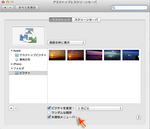
        <![CDATA[<h3>初期設定では半透明なので違和感あり！</h3><span class="mt-enclosure mt-enclosure-image" style="display: inline;"><a href="http://www.careerup.biz/mac/assets_c/2013/04/ssmenu001-1421.html" onclick="window.open('http://www.careerup.biz/mac/assets_c/2013/04/ssmenu001-1421.html','popup','width=771,height=224,scrollbars=no,resizable=no,toolbar=no,directories=no,location=no,menubar=no,status=no,left=0,top=0'); return false"><img src="http://www.careerup.biz/mac/assets_c/2013/04/ssmenu001-thumb-320x92-1421.jpg" alt="ssmenu001.jpg" class="mt-image-left" style="float: left; margin: 0 20px 20px 0;" height="92" width="320" /></a></span><p>細かい事ですがちょっと気になったので記載します。<br />誰もが皆、お気に入りのデスクトップピクチャーをデスクトップに貼付けていると思いますが、その絵のタッチ（絵の上部に階調が多くある場合など）によっては『Leopard』などの古いOSから『Mountain Lion』に買い替えた時に、何か違和感があると思います。<br />これは『Mountain Lion』の『システム環境設定』の『デスクトップとスクリーンセーバー』の『デスクトップ』の設定の一番下にある『半透明メニューバー』にチェックが入っているためで、このチェックをOFFにすれば解消されます。</p><span class="mt-enclosure mt-enclosure-image" style="display: inline;"><a href="http://www.careerup.biz/mac/assets_c/2013/04/ssmenu002-1426.html" onclick="window.open('http://www.careerup.biz/mac/assets_c/2013/04/ssmenu002-1426.html','popup','width=669,height=561,scrollbars=no,resizable=no,toolbar=no,directories=no,location=no,menubar=no,status=no,left=0,top=0'); return false"><img src="http://www.careerup.biz/mac/assets_c/2013/04/ssmenu002-thumb-150x125-1426.jpg" alt="ssmenu002.jpg" class="mt-image-left" style="float: left; margin: 0 20px 20px 0;" height="125" width="150" /></a></span><span class="mt-enclosure mt-enclosure-image" style="display: inline;"><a href="http://www.careerup.biz/mac/assets_c/2013/04/ssmenu003-1429.html" onclick="window.open('http://www.careerup.biz/mac/assets_c/2013/04/ssmenu003-1429.html','popup','width=669,height=577,scrollbars=no,resizable=no,toolbar=no,directories=no,location=no,menubar=no,status=no,left=0,top=0'); return false"><img src="http://www.careerup.biz/mac/assets_c/2013/04/ssmenu003-thumb-150x129-1429.jpg" alt="ssmenu003.jpg" class="mt-image-left" style="float: left; margin: 0 20px 20px 0;" height="129" width="150" /></a></span><p>再確認すると『Leopard』にも、この設定があったのですが、初期設定がOFF状態だったので気づきませんでした。<br />やはりメニューバーは白地できりっとメリハリがあった方が見やすいので、『半透明メニューバー』は、OFFが良いと思われます。<br /></p><p>細かい事ですが、このような事例は新しいOSになった場合によくあります。特に近年Macとそのアプリケーションはそのデザインなどが『Windows』寄りになってきているので、ショートカットが変わったりして、古くからのユーザーほど戸惑う事も多いようです。<br />これからもこんな細かい事を気がついたらドンドン掲載して行きます。<br />ちなみに、次回は『Illustrator』の基本フォントを『ヒラギノ角ゴpro』から、好きな書体や一番よく使う書体に変更する方法を掲載します！<br /></p><p>OSの気になった事や、気に入らない事は即解決して、『Illustrator』や『Photoshop』で、スムースな制作活動に励みましょう！<br /></p><p></p><div class="leftimg"><a href="http://ck.jp.ap.valuecommerce.com/servlet/referral?sid=24699&amp;pid=881306669&amp;vc_url=https%3A%2F%2Fstore1.adobe.com%2Fcfusion%2Fstore%2Fhtml%2Findex.cfm%3Fevent%3DdisplayProduct%26categoryOID%3D7285635%26store%3DOLS-JP" target="_blank"><img src="http://ad.jp.ap.valuecommerce.com/servlet/gifbanner?sid=24699&amp;pid=881306669" height="1px" border="0" width="1px" /><img src="https://store1.adobe.com/images/store/product_boxshots/150x150/box_design_standard_cs6_150x150.jpg" border="0" /></a></div><p><font style="font-size: 1.25em;"><b>Adobe Creative Suite 6 Design Standard<br />（CSデザインスタンダード）はココで買えます。<br />↓↓↓↓↓↓↓↓<br /></b></font><font style="font-size: 1.25em;"><b><font style="font-size: 0.8em;"><font style="font-size: 1.25em;"><a href="http://ck.jp.ap.valuecommerce.com/servlet/referral?sid=24699&amp;pid=881306669&amp;vc_url=https%3A%2F%2Fstore1.adobe.com%2Fcfusion%2Fstore%2Fhtml%2Findex.cfm%3Fevent%3DdisplayProduct%26categoryOID%3D7285635%26store%3DOLS-JP" target="_blank">【アドビストア】</a></font></font> <font style="font-size: 0.64em;"><font style="font-size: 1.25em;"></font></font><font style="font-size: 1em;"><a href="http://ck.jp.ap.valuecommerce.com/servlet/referral?sid=24699&amp;pid=881780105&amp;vc_url=http%3A%2F%2Fwww.amazon.co.jp%2Fs%2Fref%3Dnb_sb_noss_1%3F__mk_ja_JP%3D%25E3%2582%25AB%25E3%2582%25BF%25E3%2582%25AB%25E3%2583%258A%26url%3Dsearch-alias%253Daps%26field-keywords%3DAdobe%2BCreative%2BSuite%2B6%2BDesign%2BStandard%26rh%3Di%253Aaps%252Ck%253AAdobe%2BCreative%2BSuite%2B6%2BDesign%2BStandard%26tag%3Dvc-22%26linkCode%3Dure" target="_blank"> <font style="font-size: 0.64em;"><font style="font-size: 1.5625em;">【Amazon】</font></font></a></font></b></font><br /><font style="font-size: 1.25em;"></font></p><br /><p></p>]]>
        
    </content>
</entry>

<entry>
    <title>Mountain LionのiMacに仕事道具のAdobe Creative Suite 6 Design Standardをインストール。Illustrator cs6は真っ黒で、しかもトンボが変！</title>
    <link rel="alternate" type="text/html" href="http://careerup.biz/mac/2013/03/mountain-lionno.html" />
    <id>tag:www.careerup.biz,2013:/mac//6.352</id>

    <published>2013-03-17T08:06:53Z</published>
    <updated>2013-04-02T13:36:16Z</updated>

    <summary>AdobeCS3から、ちょっとビックリのCS6へ！ 机の上にiMacの本体をセッ...</summary>
    <author>
        <name>Mykey</name>
        
    </author>
    
    <category term="adobecreativesuite6designstandard" label="Adobe Creative Suite 6 Design Standard" scheme="http://www.sixapart.com/ns/types#tag" />
    
    <content type="html" xml:lang="ja" xml:base="http://careerup.biz/mac/">
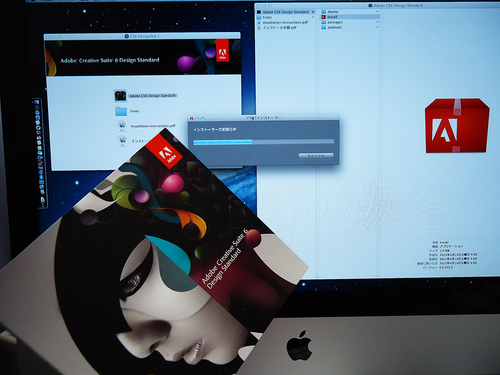
        <![CDATA[<h3>AdobeCS3から、ちょっとビックリのCS6へ！</h3><span class="mt-enclosure mt-enclosure-image" style="display: inline;"><a href="http://www.careerup.biz/mac/assets_c/2013/03/DSC05171-1399.html" onclick="window.open('http://www.careerup.biz/mac/assets_c/2013/03/DSC05171-1399.html','popup','width=1200,height=900,scrollbars=no,resizable=no,toolbar=no,directories=no,location=no,menubar=no,status=no,left=0,top=0'); return false"><img src="http://www.careerup.biz/mac/assets_c/2013/03/DSC05171-thumb-500x375-1399.jpg" alt="DSC05171.jpg" class="mt-image-left" style="float: left; margin: 0 20px 20px 0;" height="375" width="500" /></a></span>
<p>机の上にiMacの本体をセッティングして電源コードやキーボード・マウスをつなぎ、インターネットの接続も完了。そして次の広告原稿の制作が迫っていたので、おまけのappleのりんごマークのシールに目もくれずに、即必要な仕事道具のPhotoShopとIllustratorが入っている『CS6・デザインスタンダード』をインストール...と、順調に事が運んだのですが...。CS3から間を飛ばしタイムスリップしてCS6に来てしまったので、次々とビックリの連続でした。</p><span class="mt-enclosure mt-enclosure-image" style="display: inline;"><a href="http://www.careerup.biz/mac/assets_c/2013/03/DSC04999-1402.html" onclick="window.open('http://www.careerup.biz/mac/assets_c/2013/03/DSC04999-1402.html','popup','width=1200,height=900,scrollbars=no,resizable=no,toolbar=no,directories=no,location=no,menubar=no,status=no,left=0,top=0'); return false"><img src="http://www.careerup.biz/mac/assets_c/2013/03/DSC04999-thumb-110x82-1402.jpg" alt="DSC04999.jpg" class="mt-image-left" style="float: left; margin: 0 20px 20px 0;" height="82" width="110" /></a></span><div><span class="mt-enclosure mt-enclosure-image" style="display: inline;"><a href="http://www.careerup.biz/mac/assets_c/2013/03/DSC05004-1405.html" onclick="window.open('http://www.careerup.biz/mac/assets_c/2013/03/DSC05004-1405.html','popup','width=1200,height=900,scrollbars=no,resizable=no,toolbar=no,directories=no,location=no,menubar=no,status=no,left=0,top=0'); return false"><img src="http://www.careerup.biz/mac/assets_c/2013/03/DSC05004-thumb-110x82-1405.jpg" alt="DSC05004.jpg" class="mt-image-left" style="float: left; margin: 0 20px 20px 0;" height="82" width="110" /></a></span></div><div><span class="mt-enclosure mt-enclosure-image" style="display: inline;"><a href="http://www.careerup.biz/mac/assets_c/2013/03/DSC05182-1408.html" onclick="window.open('http://www.careerup.biz/mac/assets_c/2013/03/DSC05182-1408.html','popup','width=1200,height=900,scrollbars=no,resizable=no,toolbar=no,directories=no,location=no,menubar=no,status=no,left=0,top=0'); return false"><img src="http://www.careerup.biz/mac/assets_c/2013/03/DSC05182-thumb-110x82-1408.jpg" alt="DSC05182.jpg" class="mt-image-left" style="float: left; margin: 0 20px 20px 0;" height="82" width="110" /></a></span></div><div><span class="mt-enclosure mt-enclosure-image" style="display: inline;"><a href="http://www.careerup.biz/mac/assets_c/2013/03/DSC05185-1411.html" onclick="window.open('http://www.careerup.biz/mac/assets_c/2013/03/DSC05185-1411.html','popup','width=1200,height=900,scrollbars=no,resizable=no,toolbar=no,directories=no,location=no,menubar=no,status=no,left=0,top=0'); return false"><img src="http://www.careerup.biz/mac/assets_c/2013/03/DSC05185-thumb-110x82-1411.jpg" alt="DSC05185.jpg" class="mt-image-left" style="float: left; margin: 0 20px 20px 0;" height="82" width="110" /></a></span></div><p>必要最小限のフォントをMacintosh HDのアプリケーションフォルダ内の『Font Book』からインストールして、早速『Adob Illustrator CS6』を立ち上げて、目がテン！<br />ツールボックスもドキュメントのウインドウも、全て真っ黒。しかも新規ドキュメントは初期設定のまま開くと、アートボードの外側に、なにやら赤い線？？　もう一度上部の『メニューバー』の『ファイル』から『新規...』で新しいドキュメントを開くための設定をする『ダイアログボックス』を見てみると、『裁ち落とし』の項目が......。裁ち落としうんぬんなんて単語は、印刷会社の営業さんとしか使わない言葉だったので『Illustrator』の操作画面で出会うとかなり違和感があります。</p><p>しかもその裁ち落としの分の数ミリの赤い罫線が、アートボードの外側にあるという具合で、Illustrator5.0からCS３まで使ってきた経験からしても初めての概念でビックリしました。これはどうやら『CS4』から始まったようで、なにか問題点があるようで、多くの印刷会社では昔ながらのトンボの概念を推奨しているようです。</p><span class="mt-enclosure mt-enclosure-image" style="display: inline;"><a href="http://www.careerup.biz/mac/assets_c/2013/03/%E3%82%B9%E3%82%AF%E3%83%AA%E3%83%BC%E3%83%B3%E3%82%B7%E3%83%A7%E3%83%83%E3%83%88-2013-03-18-11.24.03-1414.html" onclick="window.open('http://www.careerup.biz/mac/assets_c/2013/03/スクリーンショット-2013-03-18-11.24.03-1414.html','popup','width=618,height=566,scrollbars=no,resizable=no,toolbar=no,directories=no,location=no,menubar=no,status=no,left=0,top=0'); return false"><img src="http://www.careerup.biz/mac/assets_c/2013/03/%E3%82%B9%E3%82%AF%E3%83%AA%E3%83%BC%E3%83%B3%E3%82%B7%E3%83%A7%E3%83%83%E3%83%88-2013-03-18-11.24.03-thumb-220x201-1414.jpg" alt="スクリーンショット-2013-03-18-11.24.03.jpg" class="mt-image-left" style="float: left; margin: 0 20px 20px 0;" height="201" width="220" /></a></span><p>で、とりあえず今まで通りのノーマルな原稿を作るには、最初に表示される新規ドキュメントのダイアログボックスの『裁ち落とし』の数値を『0』にします。<br />そしてA4の原稿を制作する際には、裁ち落としやトンボの文の余白のとれる少し大きめ（B４）のアートボードを設定し開き、その新規原稿内に『ツール』の『長方形ツール』で、210×297ミリの図形を作り、その図形をアクティブにしたまま、上部の『メニューバー』の『オブジェクト』から『トリムマーク』を選ぶか、『効果』の『トリムマーク』で構築します。</p><p>ちなみに『効果』の方で作ると、固定のトンボなので移動などの編集は出来ませんが、まぁ制作中にトンボをいじる事はほぼないので、『効果』で作った方がロックも不要で、うかつに触ってしまってトンボがいつの間にかズレていたなんて事もないので良いでしょう。</p><p>それから『メニューバー』や『ツールボックス』などが真っ黒だった件ですが、初期設定が黒（暗）になっていたためで、『メニューバー』の『Illustrator』→『環境設定』の『ユーザーインターフェイス』で調整が出来ます。しかし初期設定が真っ黒というのは、使いづらいので頂けません。</p><p>そして数本の原稿を制作して、今ではデフォルトのフォント（標準フォント）の設定も、一番使うゴシックBBBに変更したり、ツールボックスなども使いやすいように並べ替えて、平穏なデザインワークをこなしています。</p><div class="leftimg"><a href="http://ck.jp.ap.valuecommerce.com/servlet/referral?sid=24699&amp;pid=881306669&amp;vc_url=https%3A%2F%2Fstore1.adobe.com%2Fcfusion%2Fstore%2Fhtml%2Findex.cfm%3Fevent%3DdisplayProduct%26categoryOID%3D7285635%26store%3DOLS-JP" target="_blank"><img src="http://ad.jp.ap.valuecommerce.com/servlet/gifbanner?sid=24699&amp;pid=881306669" height="1px" border="0" width="1px" /><img src="https://store1.adobe.com/images/store/product_boxshots/150x150/box_design_standard_cs6_150x150.jpg" border="0" /></a></div><p><font style="font-size: 1.25em;"><b>Adobe Creative Suite 6 Design Standard<br />（CSデザインスタンダード）はココで買えます。<br />↓↓↓↓↓↓↓↓<br /></b></font><font style="font-size: 1.25em;"><b><font style="font-size: 0.8em;"><font style="font-size: 1.25em;"><a href="http://ck.jp.ap.valuecommerce.com/servlet/referral?sid=24699&amp;pid=881306669&amp;vc_url=https%3A%2F%2Fstore1.adobe.com%2Fcfusion%2Fstore%2Fhtml%2Findex.cfm%3Fevent%3DdisplayProduct%26categoryOID%3D7285635%26store%3DOLS-JP" target="_blank">【アドビストア】</a></font></font> <font style="font-size: 0.64em;"><font style="font-size: 1.25em;"></font></font><font style="font-size: 1em;"><a href="http://ck.jp.ap.valuecommerce.com/servlet/referral?sid=24699&amp;pid=881780105&amp;vc_url=http%3A%2F%2Fwww.amazon.co.jp%2Fs%2Fref%3Dnb_sb_noss_1%3F__mk_ja_JP%3D%25E3%2582%25AB%25E3%2582%25BF%25E3%2582%25AB%25E3%2583%258A%26url%3Dsearch-alias%253Daps%26field-keywords%3DAdobe%2BCreative%2BSuite%2B6%2BDesign%2BStandard%26rh%3Di%253Aaps%252Ck%253AAdobe%2BCreative%2BSuite%2B6%2BDesign%2BStandard%26tag%3Dvc-22%26linkCode%3Dure" target="_blank"> <font style="font-size: 0.64em;"><font style="font-size: 1.5625em;">【Amazon】</font></font></a></font></b></font><br /><font style="font-size: 1.25em;"></font></p>]]>
        
    </content>
</entry>

<entry>
    <title>iMacの『Leopard』から『Mountain Lion』へ！</title>
    <link rel="alternate" type="text/html" href="http://careerup.biz/mac/2013/03/imac-leopardmountain-lion.html" />
    <id>tag:www.careerup.biz,2013:/mac//6.335</id>

    <published>2013-03-12T03:15:28Z</published>
    <updated>2013-03-12T15:56:11Z</updated>

    <summary>梱包を開封してセッティング！最初にすることは?2月の末に『iMacのMounta...</summary>
    <author>
        <name>Mykey</name>
        
    </author>
    
    
    <content type="html" xml:lang="ja" xml:base="http://careerup.biz/mac/">
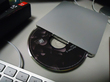
        <![CDATA[<h3>梱包を開封してセッティング！最初にすることは?</h3><span class="mt-enclosure mt-enclosure-image" style="display: inline;"><a href="http://www.careerup.biz/mac/assets_c/2013/03/DSC04888-1360.html" onclick="window.open('http://www.careerup.biz/mac/assets_c/2013/03/DSC04888-1360.html','popup','width=1200,height=900,scrollbars=no,resizable=no,toolbar=no,directories=no,location=no,menubar=no,status=no,left=0,top=0'); return false"><img src="http://www.careerup.biz/mac/assets_c/2013/03/DSC04888-thumb-300x225-1360.jpg" alt="DSC04888.jpg" class="mt-image-left" style="float: left; margin: 0 20px 20px 0;" height="225" width="300" /></a></span><p>2月の末に『iMacのMountain Lion』を新規導入しました。</p><p>1997年に最初のMacintosh LC630を購入してから9500（後にG３のCPUに乗せ替え）、タワー型のG４、iMac Leopard、そして今回のiMac Mountain Lionと、とうとう5代目の相棒となりました。</p><p>今回の『iMac Mountain Lion』は『G４』から『iMac Leopard』になった時よりは、感動は薄かったものの、いくつか気になった所があったので、その『問題点』と『対処法』を、初心者の方や、ベテランでもPCのテクニカルな部分は今一解らないという、ご同輩向けになるべくやさしくご紹介しようと思っています。そしてこの項では、デザイナーが最初にしておいた方が良いことを紹介します。</p><span class="mt-enclosure mt-enclosure-image" style="display: inline;"><a href="http://www.careerup.biz/mac/assets_c/2013/03/DSC04964-1384.html" onclick="window.open('http://www.careerup.biz/mac/assets_c/2013/03/DSC04964-1384.html','popup','width=1200,height=900,scrollbars=no,resizable=no,toolbar=no,directories=no,location=no,menubar=no,status=no,left=0,top=0'); return false"><img src="http://www.careerup.biz/mac/assets_c/2013/03/DSC04964-thumb-300x225-1384.jpg" alt="DSC04964.jpg" class="mt-image-left" style="float: left; margin: 0 20px 20px 0;" height="225" width="300" /></a></span><p>まず、梱包を開封して配線して立ち上げると、以前のiMac同様に国の設定から始まり、クイックスタートなる音声ガイダンス付の基本的な解説画面になりますが、勿論スキップ（省略）もできます。</p><p>まず大きな違いは、以前よりも本体が極薄になったために、内蔵の『CD・DVD』ドライブが無くなってしまったので、アプリケーションなどは、ダウンロード版を購入してwebから直接インストールするか、パッケージ版にするのであれば、別売の外付けドライブを購入するか、ドライブのある別のPCとRANケーブルで『Ethernet』に繋ぎDVDを認識させてインストール方法をとります。</p><span class="mt-enclosure mt-enclosure-image" style="display: inline;"><a href="http://www.careerup.biz/mac/assets_c/2013/03/DSC05183-1387.html" onclick="window.open('http://www.careerup.biz/mac/assets_c/2013/03/DSC05183-1387.html','popup','width=1200,height=900,scrollbars=no,resizable=no,toolbar=no,directories=no,location=no,menubar=no,status=no,left=0,top=0'); return false"><img src="http://www.careerup.biz/mac/assets_c/2013/03/DSC05183-thumb-150x112-1387.jpg" alt="DSC05183.jpg" class="mt-image-left" style="float: left; margin: 0 20px 20px 0;" height="112" width="150" /></a></span><p>しかし別売のDVDドライブもそれほど高価ではないので、買っておいても良いかもしれません。USBで繋ぐだけなので使い勝手も良いし、他のマシンの　DVDドライブにトラブルがあったときのバックアップにもなります。事務所だったら一台あればよい訳ですし、かえって合理性を増したとも考えられます。</p><p>そのAppleの純正のDVDドライブで、デザイナーの必需品であるAdobe CS6の『Illustrator』や『Photoshop』も、スムースにインストールできましたが問題はここから！バージョンしたCS6には色々謎が...。</p><p><font style="font-size: 1.25em;"><b><a href="http://ck.jp.ap.valuecommerce.com/servlet/referral?sid=24699&amp;pid=878925105&amp;vc_url=http%3A%2F%2Fwww.amazon.co.jp%2Fs%2Fref%3Dnb_sb_ss_c_0_4%3F__mk_ja_JP%3D%2583J%2583%255E%2583J%2583i%26url%3Dsearch-alias%253Dcomputers%26field-keywords%3Dimac%26sprefix%3DiMac%252Caps%252C321%26tag%3Dvc-22%26linkCode%3Dure" target="_blank"><img src="http://ad.jp.ap.valuecommerce.com/servlet/gifbanner?sid=24699&amp;pid=878925105" border="0" height="1px" width="1px" />iMacは【Amazon】で購入できます。</a></b></font><br /></p>]]>
        
    </content>
</entry>

<entry>
    <title>OS9からLeopardへ、さぁ! iMacをいざ起動！</title>
    <link rel="alternate" type="text/html" href="http://careerup.biz/mac/2009/04/imac-1.html" />
    <id>tag:www.careerup.biz,2009:/mac//8.50</id>

    <published>2009-04-01T04:30:59Z</published>
    <updated>2013-03-12T13:02:15Z</updated>

    <summary>電源を入れ起動！ 箱から出し付属品のチェックをして、マニュアルの冒頭にある『さあ...</summary>
    <author>
        <name>Mykey</name>
        
    </author>
    
    
    <content type="html" xml:lang="ja" xml:base="http://careerup.biz/mac/">
        <![CDATA[<h3>電源を入れ起動！</h3>
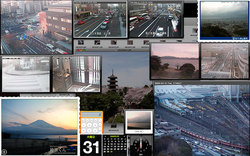
<p>箱から出し付属品のチェックをして、<br />マニュアルの冒頭にある『さあ始めよう』を参照してセットアップ。<br />本体が軽いのと、接続部分が解り易いので作業性が良く、<br />アッと言う間にデスクにセッティングを終え、起動スイッチON！</p><span class="mt-enclosure mt-enclosure-image" style="display: inline;"><a href="http://www.careerup.biz/mac/assets_c/2009/03/iMac05DSC02801-16.html" onclick="window.open('http://www.careerup.biz/mac/assets_c/2009/03/iMac05DSC02801-16.html','popup','width=425,height=319,scrollbars=no,resizable=no,toolbar=no,directories=no,location=no,menubar=no,status=no,left=0,top=0'); return false"><img src="http://www.careerup.biz/mac/assets_c/2009/03/iMac05DSC02801-thumb-110x82-16.jpg" alt="iMac05DSC02801.jpg" class="mt-image-left" style="float: left; margin: 0 20px 20px 0;" height="82" width="110" /></a></span><div><span class="mt-enclosure mt-enclosure-image" style="display: inline;"><a href="http://www.careerup.biz/mac/assets_c/2009/03/iMac06DSC02814-19.html" onclick="window.open('http://www.careerup.biz/mac/assets_c/2009/03/iMac06DSC02814-19.html','popup','width=425,height=319,scrollbars=no,resizable=no,toolbar=no,directories=no,location=no,menubar=no,status=no,left=0,top=0'); return false"><img src="http://www.careerup.biz/mac/assets_c/2009/03/iMac06DSC02814-thumb-110x82-19.jpg" alt="iMac06DSC02814.jpg" class="mt-image-left" style="float: left; margin: 0 20px 20px 0;" height="82" width="110" /></a></span></div><div><span class="mt-enclosure mt-enclosure-image" style="display: inline;"><a href="http://www.careerup.biz/mac/assets_c/2009/03/iMac07DSC02821-22.html" onclick="window.open('http://www.careerup.biz/mac/assets_c/2009/03/iMac07DSC02821-22.html','popup','width=640,height=480,scrollbars=no,resizable=no,toolbar=no,directories=no,location=no,menubar=no,status=no,left=0,top=0'); return false"><img src="http://www.careerup.biz/mac/assets_c/2009/03/iMac07DSC02821-thumb-110x82-22.jpg" alt="iMac07DSC02821.jpg" class="mt-image-left" style="float: left; margin: 0 20px 20px 0;" height="82" width="110" /></a></span></div><div><span class="mt-enclosure mt-enclosure-image" style="display: inline;"><a href="http://www.careerup.biz/mac/assets_c/2009/03/iMac08DSC02834-25.html" onclick="window.open('http://www.careerup.biz/mac/assets_c/2009/03/iMac08DSC02834-25.html','popup','width=425,height=319,scrollbars=no,resizable=no,toolbar=no,directories=no,location=no,menubar=no,status=no,left=0,top=0'); return false"><img src="http://www.careerup.biz/mac/assets_c/2009/03/iMac08DSC02834-thumb-110x82-25.jpg" alt="iMac08DSC02834.jpg" class="mt-image-left" style="float: left; margin: 0 20px 20px 0;" height="82" width="110" /></a></span></div><div><span class="mt-enclosure mt-enclosure-image" style="display: inline;"><a href="http://www.careerup.biz/mac/assets_c/2009/03/iMac08DSC02872-28.html" onclick="window.open('http://www.careerup.biz/mac/assets_c/2009/03/iMac08DSC02872-28.html','popup','width=425,height=319,scrollbars=no,resizable=no,toolbar=no,directories=no,location=no,menubar=no,status=no,left=0,top=0'); return false"><img src="http://www.careerup.biz/mac/assets_c/2009/03/iMac08DSC02872-thumb-110x82-28.jpg" alt="iMac08DSC02872.jpg" class="mt-image-left" style="float: left; margin: 0 20px 20px 0;" height="82" width="110" /></a></span></div><div>最初に言語選択の項目が表示され、次に数カ国語の<br />『Well come』が連続表示、その後、設定画面になります。<br />画面に従ってクリックするだけなので、実にスムース。<br />キーボード入力環境、インタネット環境、Mac IDなど次々に<br />入力し終わると、完全に使用可能状態になり、<br />OS X独特のDockもデスクトップ下部に現れます。<br clear="all" /><h3>立上がったら即、楽しむ！</h3><span class="mt-enclosure mt-enclosure-image" style="display: inline;"><a href="http://www.careerup.biz/mac/assets_c/2009/03/livecom_pic3-36.html" onclick="window.open('http://www.careerup.biz/mac/assets_c/2009/03/livecom_pic3-36.html','popup','width=850,height=531,scrollbars=no,resizable=no,toolbar=no,directories=no,location=no,menubar=no,status=no,left=0,top=0'); return false"><img src="http://www.careerup.biz/mac/assets_c/2009/03/livecom_pic3-thumb-250x156-36.jpg" alt="livecom_pic3.jpg" class="mt-image-left" style="float: left; margin: 0 20px 20px 0;" height="156" width="250" /></a></span>ここからが本当のスタート！......<br />ですが、その前に.......。<br />メールソフト、インターネットブラウザ、<br />音楽鑑賞ソフト、映像鑑賞ソフトなど、<br />数多くの使えるソフトがインストール済<br />なので、少し楽しんでみましょう！！<br />インターネットブラウザの<br />『Safari』のDashBoard機能を使って、<br />デスクトップに自分のお気に入りの<br />アイテムを表示してみたりとか！<br /><br /><span class="mt-enclosure mt-enclosure-image" style="display: inline;"><a href="http://www.careerup.biz/mac/assets_c/2009/03/iMac_profire-34.html" onclick="window.open('http://www.careerup.biz/mac/assets_c/2009/03/iMac_profire-34.html','popup','width=308,height=351,scrollbars=no,resizable=no,toolbar=no,directories=no,location=no,menubar=no,status=no,left=0,top=0'); return false"><img src="http://www.careerup.biz/mac/assets_c/2009/03/iMac_profire-thumb-109x124-34.jpg" alt="iMac_profire.jpg" class="mt-image-left" style="float: left; margin: 0 20px 20px 0;" height="124" width="109" /></a></span>例えば日本中のライブカメラを検索して気に入った風景を切取って<br />iMacと言えどもプロセッサの能力がプロユース並みに<br />高いので、ウェブでも映像処理でも、<br />かなりサクサクとストレスなく作業できます。<br />ちなみにこのマシーンのプロセッサは2.66GHz Intel Core 2 Duoで、<br />メモリは4GB 800 MHz DDR2 SDRAMです。<br />以前はMac G4 OS9.2に付属していたOS X10.3.9を時使用していて<br />ストレスが溜まりましたが、このOS X10.5.6は非常に楽です。</div><div><br /></div><div><a href="http://ck.jp.ap.valuecommerce.com/servlet/referral?sid=24699&amp;pid=878925105&amp;vc_url=http%3A%2F%2Fwww.amazon.co.jp%2Fs%2Fref%3Dnb_sb_ss_c_0_4%3F__mk_ja_JP%3D%2583J%2583%255E%2583J%2583i%26url%3Dsearch-alias%253Dcomputers%26field-keywords%3Dimac%26sprefix%3DiMac%252Caps%252C321%26tag%3Dvc-22%26linkCode%3Dure" target="_blank"><img src="http://ad.jp.ap.valuecommerce.com/servlet/gifbanner?sid=24699&amp;pid=878925105" border="0" height="1px" width="1px" /><img src="http://ec2.images-amazon.com/images/I/41OviNkkZmL._SL500_AA300_.jpg" align="left" border="0" width="230" /></a><a href="http://ck.jp.ap.valuecommerce.com/servlet/referral?sid=24699&amp;pid=878925105&amp;vc_url=http%3A%2F%2Fwww.amazon.co.jp%2Fs%2Fref%3Dnb_sb_ss_c_0_4%3F__mk_ja_JP%3D%2583J%2583%255E%2583J%2583i%26url%3Dsearch-alias%253Dcomputers%26field-keywords%3Dimac%26sprefix%3DiMac%252Caps%252C321%26tag%3Dvc-22%26linkCode%3Dure" target="_blank"><b><font class="Apple-style-span" style="font-size: 1.25em; "><br /><br /></font></b></a></div><div><b><br /></b></div><div><b><br /></b></div><div><b><br /></b></div><div><b><br /></b></div><div><b><br /></b></div><div><b><font class="Apple-style-span" style="font-size: 1.25em; "><a href="http://ck.jp.ap.valuecommerce.com/servlet/referral?sid=24699&amp;pid=878925105&amp;vc_url=http%3A%2F%2Fwww.amazon.co.jp%2Fs%2Fref%3Dnb_sb_ss_c_0_4%3F__mk_ja_JP%3D%2583J%2583%255E%2583J%2583i%26url%3Dsearch-alias%253Dcomputers%26field-keywords%3Dimac%26sprefix%3DiMac%252Caps%252C321%26tag%3Dvc-22%26linkCode%3Dure" target="_blank">iMacは【Amazon】で購入できます。</a></font></b></div><div></div><div></div>]]>
        
    </content>
</entry>

<entry>
    <title>OS9からLeopardへ、セッティングも完了！</title>
    <link rel="alternate" type="text/html" href="http://careerup.biz/mac/2009/03/mac-os9mac-osx.html" />
    <id>tag:www.careerup.biz,2009:/mac//8.29</id>

    <published>2009-03-31T04:04:15Z</published>
    <updated>2013-03-18T15:46:33Z</updated>

    <summary>梱包を解く2008年10月、使い慣れたOS9からOSXへ移行しました。マシンもG...</summary>
    <author>
        <name>Mykey</name>
        
    </author>
    
    
    <content type="html" xml:lang="ja" xml:base="http://careerup.biz/mac/">
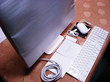
        <![CDATA[<h3>梱包を解く</h3><div>2008年10月、使い慣れたOS9からOSXへ移行しました。</div><div>マシンもG4のデュアルからiMacへと変わり、フォントをはじめ、</div><div>アドビフォトショップやアドビイラストレーターもすべて</div><div>最新バージョンでの再構築となりました。</div><div>ちなみに、マシンはアップルストアのウェブサイトで購入し</div><div>サポートも有料にて3年に延長しました。</div><div>マシンの性能としてもiMacながらG4よりも数段向上しました。</div><div><br /></div><div><span class="mt-enclosure mt-enclosure-image" style="display: inline;"><a href="http://www.careerup.biz/mac/assets_c/2009/03/iMac02DSC02659-34.html" onclick="window.open('http://www.careerup.biz/mac/assets_c/2009/03/iMac02DSC02659-34.html','popup','width=425,height=319,scrollbars=no,resizable=no,toolbar=no,directories=no,location=no,menubar=no,status=no,left=0,top=0'); return false"><img src="http://www.careerup.biz/mac/assets_c/2009/03/iMac02DSC02659-thumb-110x82-34.gif" alt="iMac02DSC02659.gif" class="mt-image-left" style="margin: 0pt 20px 20px 0pt; float: left;" height="82" width="110" /></a></span><a href="http://www.careerup.biz/mac/assets_c/2009/03/iMac01DSC02695-31.html" onclick="window.open('http://www.careerup.biz/mac/assets_c/2009/03/iMac01DSC02695-31.html','popup','width=425,height=319,scrollbars=no,resizable=no,toolbar=no,directories=no,location=no,menubar=no,status=no,left=0,top=0'); return false"><img src="http://www.careerup.biz/mac/assets_c/2009/03/iMac01DSC02695-thumb-110x82-31.jpg" alt="iMac01DSC02695.jpg" class="mt-image-left" style="margin: 0pt 20px 20px 0pt; float: left;" height="82" width="110" /></a></div><div><span class="mt-enclosure mt-enclosure-image" style="display: inline;"><a href="http://www.careerup.biz/mac/assets_c/2009/03/iMac03DSC02731-37.html" onclick="http://www.careerup.biz/mac/assets_c/2009/03/iMac03DSC02731-37.html','popup','width=425,height=319,scrollbars=no,resizable=no,toolbar=no,directories=no,location=no,menubar=no,status=no,left=0,top=0'); return false"><img src="http://www.careerup.biz/mac/assets_c/2009/03/iMac03DSC02731-thumb-110x82-37.jpg" alt="iMac03DSC02731.jpg" class="mt-image-left" style="margin: 0pt 20px 20px 0pt; float: left;" height="82" width="110" /></a></span></div><div><span class="mt-enclosure mt-enclosure-image" style="display: inline;"><a href="http://www.careerup.biz/mac/assets_c/2009/03/iMac04DSC02767-40.html" onclick="http://www.careerup.biz/mac/assets_c/2009/03/iMac04DSC02767-40.html','popup','width=425,height=319,scrollbars=no,resizable=no,toolbar=no,directories=no,location=no,menubar=no,status=no,left=0,top=0'); return false"><img src="http://www.careerup.biz/mac/assets_c/2009/03/iMac04DSC02767-thumb-110x82-40.jpg" alt="iMac04DSC02767.jpg" class="mt-image-left" style="margin: 0pt 20px 20px 0pt; float: left;" height="82" width="110" /></a></span></div><div><br /></div><div><br /></div><div><br /></div><div><br /></div><div><br /></div><div><br /></div><div><br /></div><div>箱の中は隙間もなくギッシリ。すべて取り出して内容確認。裏の電源コードなども</div><div>すっきりスマートに繋げて、机の上がかなり有効に使えそう。</div><div>タワー型のG4より性能もHDDの容量も大きいのに、</div><div>このスクリーン一体型のケースの中にすべてが納まっているのは見事です。</div><h3>デスクにセッティング</h3><div><span class="mt-enclosure mt-enclosure-image" style="display: inline;"><a href="http://www.careerup.biz/mac/assets_c/2009/03/G4_9500_iM_DSC01425-67.html" onclick="http://www.careerup.biz/mac/assets_c/2009/03/G4_9500_iM_DSC01425-67.html','popup','width=640,height=480,scrollbars=no,resizable=no,toolbar=no,directories=no,location=no,menubar=no,status=no,left=0,top=0'); return false"><img src="http://www.careerup.biz/mac/assets_c/2009/03/G4_9500_iM_DSC01425-thumb-200x150-67.jpg" alt="G4_9500_iM_DSC01425.jpg" class="mt-image-left" style="margin: 0pt 20px 20px 0pt; float: left;" height="150" width="200" /></a></span></div><div>オールインワンの省スペース型なので、</div><div>既存のG4とPower Mac 9500のモニターの</div><div>手前にセッティングすることができました。</div><div><br /></div><div>うしろのマシンを使用する際にも</div><div>軽いのでサッと移動できます。</div><div><br /></div><div>USB端子などもモニターの裏側にあるので、</div><div>プリンターやデジカメ、外部ハードディスク</div><div>の接続や取外しも簡単です。</div><div><br /></div><div><a href="http://ck.jp.ap.valuecommerce.com/servlet/referral?sid=24699&amp;pid=878925105&amp;vc_url=http%3A%2F%2Fwww.amazon.co.jp%2Fs%2Fref%3Dnb_sb_ss_c_0_4%3F__mk_ja_JP%3D%2583J%2583%255E%2583J%2583i%26url%3Dsearch-alias%253Dcomputers%26field-keywords%3Dimac%26sprefix%3DiMac%252Caps%252C321%26tag%3Dvc-22%26linkCode%3Dure" target="_blank"><img src="http://ad.jp.ap.valuecommerce.com/servlet/gifbanner?sid=24699&amp;pid=878925105" height="1px" border="0" width="1px" /><img src="http://ec2.images-amazon.com/images/I/41OviNkkZmL._SL500_AA300_.jpg" align="left" border="0" width="230" /></a><a href="http://ck.jp.ap.valuecommerce.com/servlet/referral?sid=24699&amp;pid=878925105&amp;vc_url=http%3A%2F%2Fwww.amazon.co.jp%2Fs%2Fref%3Dnb_sb_ss_c_0_4%3F__mk_ja_JP%3D%2583J%2583%255E%2583J%2583i%26url%3Dsearch-alias%253Dcomputers%26field-keywords%3Dimac%26sprefix%3DiMac%252Caps%252C321%26tag%3Dvc-22%26linkCode%3Dure" target="_blank"><b><font class="Apple-style-span" style="font-size: 1.25em; "><br /><br /></font></b></a></div><div><b><br /></b></div><div><b><br /></b></div><div><b><br /></b></div><div><b><br /></b></div><div><b><br /></b></div><div><b><font class="Apple-style-span" style="font-size: 1.25em; "><a href="http://ck.jp.ap.valuecommerce.com/servlet/referral?sid=24699&amp;pid=878925105&amp;vc_url=http%3A%2F%2Fwww.amazon.co.jp%2Fs%2Fref%3Dnb_sb_ss_c_0_4%3F__mk_ja_JP%3D%2583J%2583%255E%2583J%2583i%26url%3Dsearch-alias%253Dcomputers%26field-keywords%3Dimac%26sprefix%3DiMac%252Caps%252C321%26tag%3Dvc-22%26linkCode%3Dure" target="_blank">iMacは【Amazon】で購入できます。</a></font></b></div><div></div><div></div>]]>
        
    </content>
</entry>

</feed>